
When you take a photo,you may want to print it out to appreciate immediately ,especially when you are joining the wedding party or your boyfriend is proposing to you.How wonderful the scene is! Do you wish this moment could last forever?Of course,yes,you do.Now,Canon PIXMA MG3520 photo all-in-one inkjet printer can help you come true.PIXMA MG3520 is a latest product of Canon.One of its attractive advantage is that it allows users to print photos,which are in the IOS equipment, easily via wi-fi.
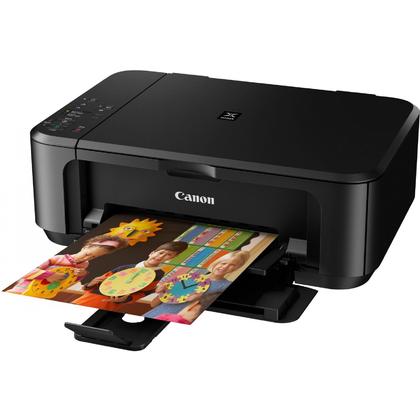
PIXMA MG3520 has AirPrint wireless printing technology certification.Besides photos,e-mail,messages,and documents also can be printed while they are transmitted to the printer from iPhone,iPad and iPod touch.Canon thinks highly of the air-print technology,calls it let the printer become more suitable for home use.
The use of PIXMA MG3520 do not need any tutorial or instruction,as long as users’ iOS version system is in more than 4.2,it can print via simple operation.And the specify operation is as follows:
If you want to use Air-print on the ios device,please follow the steps:
First,open the app which you want to print photos through.Press or .These buttons are usually located at the bottom of the screen.
Second,press
Third,select the printer and the number of copies to print, and then click “print”.
Fourth,you must open the Wi-Fi device to find the available printers.Go to “Setting”>”Wi-Fi” and ensure that Wi-Fi is already open.
Fifth,if you can not see the printer,please ensure that it is within Wi-Fi coverage.
By the way,you can view or cancel printing in the “print abstract”.To view the “print abstract”,press the main screen button twice and swipe from left to right.”Print abstract” is available only while the printer is printing.
If unable to print
If it is still unable to print,or display “could not find the AirPrint printer” information, check the following:
1.Ensure that the paper , ink or toner in the printer is enough.
2.Make sure that the printer and the iOS device is connected to the same Wi-Fi network.
3.Make sure that the printer is energized, and is already open. Please try to turn off the printer and then re -opened, to see if the problem is solved.
4.Check the printer if any error indicating lamp or indicator on the control panel . Check the printer attached documents to eliminate any error display.
Please contact the printer manufacturer, to see whether there are any firmware updates apply to your printer. For more information, please see the printer documents or contact the printer supplier. Even if you just buy a printer, there may also be a firmware update is available.
For more information,click here:123ink.ca.