

Replacing ink cartridges on a Canon Printer is not that difficult. But now an instruction will be shown below for you, teaching you how to replace ink cartridges in the right way. There are four steps for you to follow. In summary, you’ll have to open the printer’s lid and pull up on the leg, which allows you to pull out the cartridges. Then you’ll be able to replace the old cartridges with new ones.
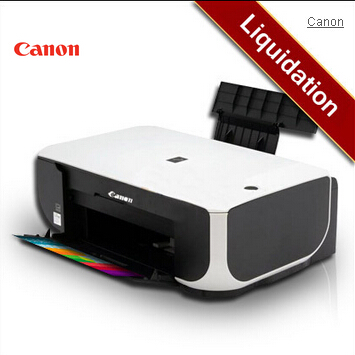
Since that the printers of Canon all function considerately similar in the way they are constructed and the way to replacing the cartridges with a new one. So a random printer will be taken as a general example to show you how to replace ink cartridges on a Canon printer. Here we take the PIXMA MX three-ten as the example.
First, you need to ensure that the printer is on. Then lift up the lid of the printer and pop its little leg into place in order to hold it open. Holding it open is the way to make sure that you are free from smushing your fingers.
Reach in the printer. And then remove the cartridge. Once you remove the old cartridge on the printer, you can lay your new cartridge down flat. Then a little sticker on that cartridge can be seen. Peel off the sticker, which is used to cover the metal contact. The metal contact allows the ink to flow right into the printer. When you take off the sticker, you’ll see what the following picture shows. There is nothing covering it up.
Thirdly, insert the new cartridges into their slots. You’ll hear a nice click sound, which means that the cartridges are in.
After Step 3, windows will pop up and ask you to align print cartridges. Go on to let the print cartridges aligned. No matter when you install a new cartridge, that happens.
If you do as the instruction says, you’ll successfully install a new cartridge on your Canon printer.