


When your Brother printer has run out of toner, it will stop printing at once. Before refilling it, you should reset it firstly. So that you can extend the working life of the cartridge effectively, and make a full use of it. Or the LCD will keep displaying message like “Toner Life End” or “Replace Toner” if you refill the toner directly. Next, I will show you how to reset TN330&TN360 Toner settings on Brother printers:
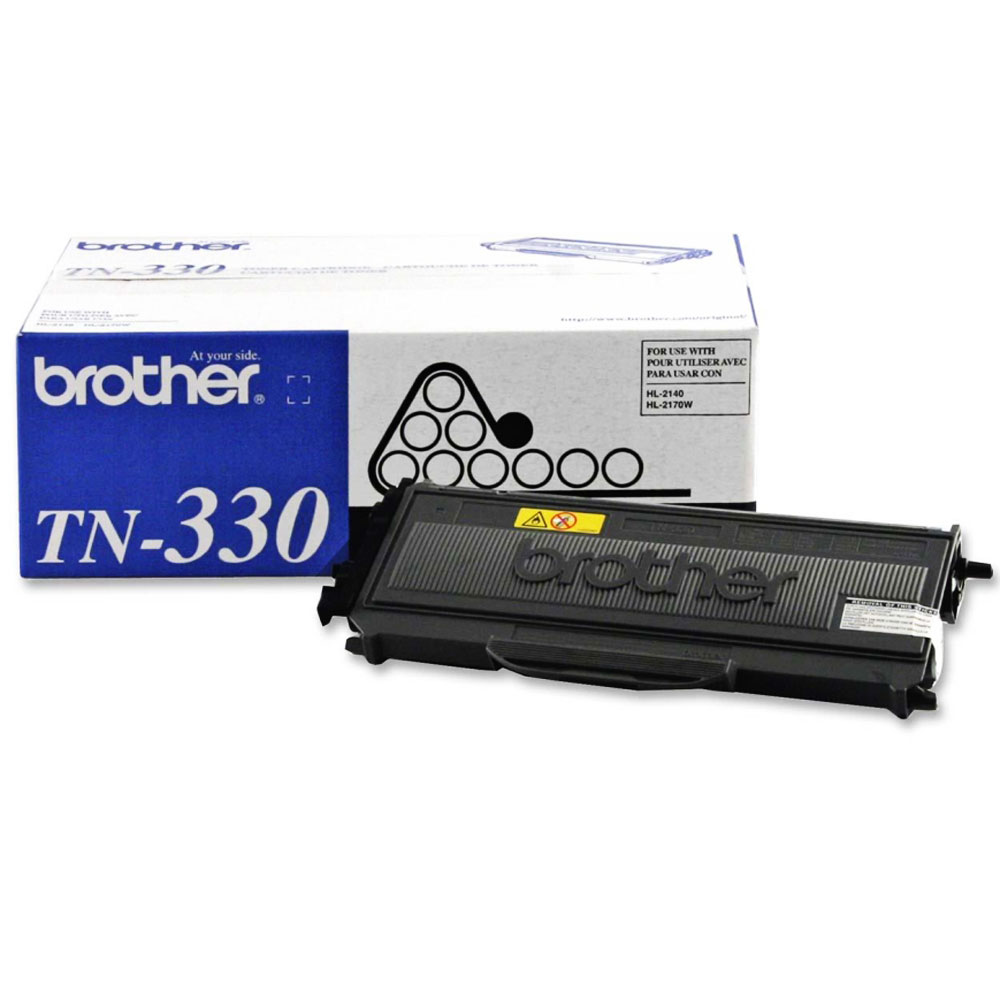
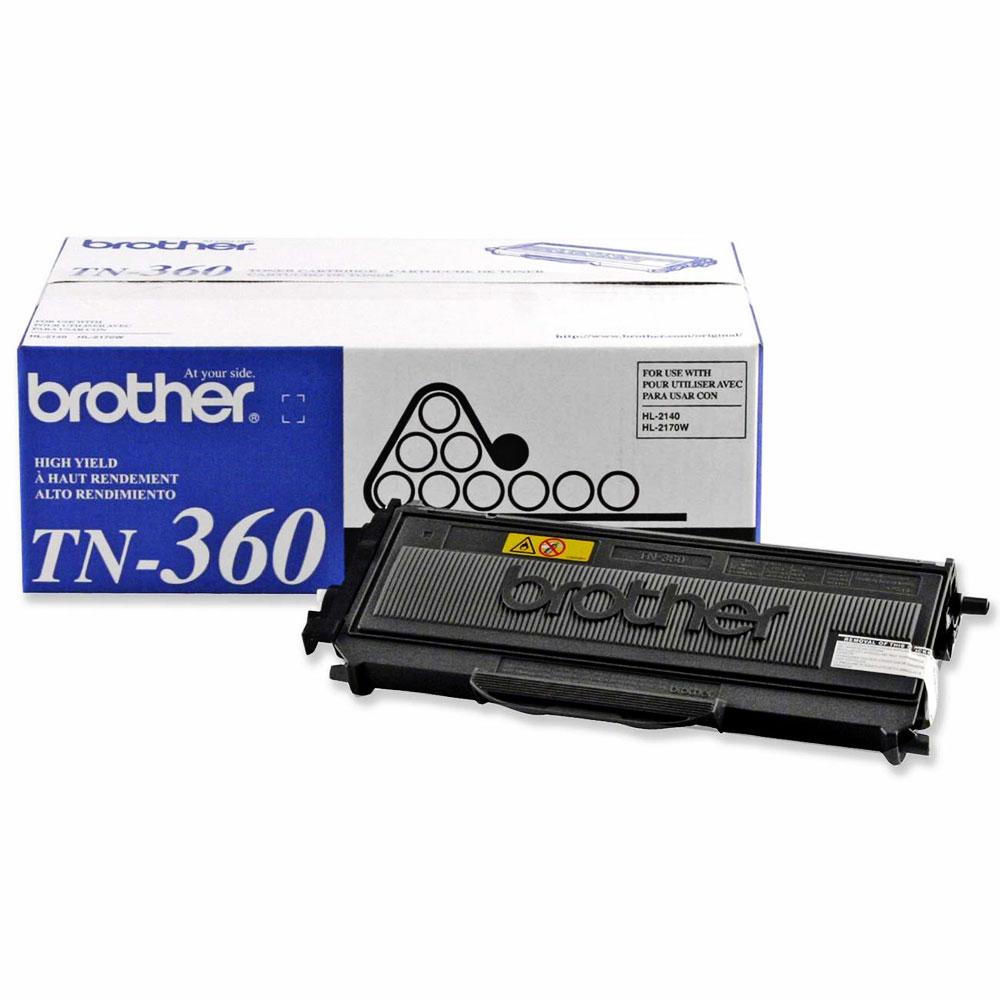
For DCP Printer Series:
- Open the front cover.
- Press the Clear/Back button on the control panel. The display will read “Replace Drum 1. YES 2. NO” (DISREGARD THIS MESSAGE) Proceed to step
- Press the start button, press the up or down arrow key until “00” appears on the LCD display and then press OK.
- Close the front cover and the operation has now been completed.
For MFC Printer Series:
- Open the front cover.
- Press the Clear/Back button on the control panel.
- Press in order *,0,0.
- Close the front cover and the operation has now been completed.
For HL Printer Series:
- Open the front cover.
- Turn on the power switch while holding down the “GO” (Blue LED) button until all LEDs on the control panel light up. (approx. 5 seconds)
- Release the “GO” button and check that all LEDs are off.
- Press the “GO” button twice, pause then press the “GO” button six times for TN-330 (Standard Yield) Toner, or seven times for TN-360 (High Yield) Toner.
- Close the front cover and the operation has now been completed.
If you need toner refills, come to 123ink.ca, we ensure you will get the best high quality printing supplies with the lowest costs possible from ordering your ink and toners online from our website.



thank you so much. this was really helpful for mfc-73345n printer it resolved it!!!!!
MFC-L27100W that does not work
Compatible Printer List
Brother – DCP Series
DCP-7030 DCP-7040 DCP-7045N
Brother – HL Series
HL-2140 HL-2150N HL-2170W
Brother – MFC Series
MFC-7320 MFC-7340 MFC-7345DN MFC-7345N MFC-7440N MFC-7840W
Doesnt work for DCP-7040
It doesn’t work on my HL-2140. The 3 lights are on when turning on the printer while pressing the GO button, front hood open. When I release the GO button, the lights turns off, so I’ve continue the precedure, but it doesn’t do anything different. I still have the toner light on. I’ve try to wait longer between the 2 pressing and the 7 pressing, wait longer holding the GO button when turning it on, etc. The “best” result I’ve obtain is that the printer refuse to do anything, all 3 lights are on.