


Sometimes we do receive phone calls or inquiries from customers asking why ink cartridges are not working? this can either be a tough or simple question depending on the situation which I can’t offer you a perfect solution, however, there is one thing that I can guarantee that about 70% of cases regard to ink cartridges, could be fixed manually within minutes, of course, there are always exceptions, today I am going to show you some of the tricks how to make your ink cartridges work with the 70% success rate !
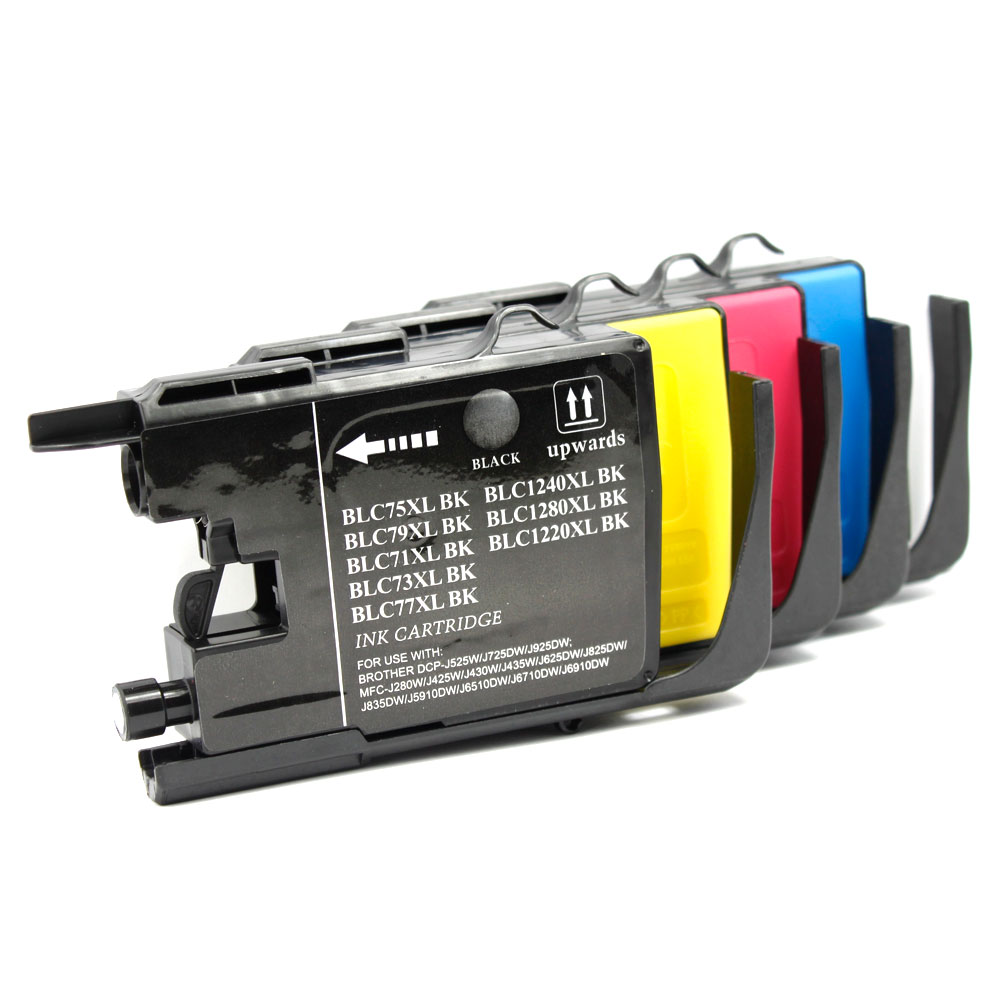
How to define printer cartridges issues?
Before you went into Google search for ink cartridges troubleshooting, you should always have a clear mind set what is the cause of the problem, is it whether the printer don’t accept the cartridges ? Or, he cartridges does not print or print below average quality. To define the cartridges quality, there is always a huge debate between OEM cartridges and re-manufacture cartridges, this is misconception that the people usually had, most of the cases, the defective printer play an important roles why your cartridges isn’t print, I will guide you through the simple troubleshooting procedure at the following:
1) Did you insert your cartridges and locked into the slot properly
This is one of the common problem, every time when you are inserting your cartridges into the machine, you have to make sure that you heard the clicking sound, the sound indicated that your cartridges have fully locked into the slot, you have to make sure that is completely locked to prevent issue such as leaking..etc.
2) Did you remove the seal from the cartridges?
For every new cartridges, there will have the plastic seal on it, the purpose for having this seal is to prevent your ink or toner dry out or leaking out while in the procedure of shipping, you will always have to make sure that you remove the seal by pulling the tab, the seal design could be varies across different brands, but the ideal for having that are pretty much the same. Always make sure that you remove all the seals and packing material before plug in into your printer.
3) Is your printer components clean enough?
No matter if you are currently having a laser printers or a inkjet printer, especially for the laser printer model, you always have to keep your devices as clean as possible, sometimes it might have powder leak or even dust, it might affect the performance of the printing. To solve the problem, just simply use a towel to wiped down all the particles and dusts to prevent the scratch the surface. Unlike the laser printer, the inkjet uses a very special nozzles technology, and it is the most important thing that you will have to keep it clean with, all you need to do is to use the “internal cleaning system” which could be found on your printer’s user manual, you will also need to verify that whether your nozzles are unclogged so you will be able to print, it is recommended you use the nozzle cleaning process periodically.
4) Is your cartridges dried out?
Ink Cartridges are generally, a chemical which is made by liquid and other particles, it pretty much means that it also have their lifespan, when they passed over their shelf period for too long (let’s say 3-4 years), the ink could dry up and especially for the toner cartridges, which it is much easier to get moist, clump..etc, so if you are the person who always buy in value pack cartridges, always make sure that you will have the time to finish it before the expiration date comes.
Printer chip?
Sometimes printer might not recognize your cartridges model because the memory chip which is installed on your cartridges. The purpose of having these chips can be many reason, but the most important, the manufacture is using the chip to identify whether the cartridges that you are using, is legal, the ink level that you have and how much pages that you print…etc, it is always good to know that you clear the memory, we also refer that as a “cold start”, which simply turn off the printer and plug out the cable and leave it there at least 10 minutes, the all the memories from the previous will be removed, and then plug in the cable again and insert the cartridges, then power up the printer, then it might fix the problem, if the problem still persist, then it basically mean that your toner chip is damage and you might need to look for a new one.
If you have more question regard to ink and toner cartridges >> https://www.123ink.ca/




when i insert a new NE_T0786 LM Light magenta cartridge into my epsom stylus photo R280 the printer says it is empty. have had this happen before but reinserted and worked ok.
not this time
Help
Hi,
Did you try the cleaning feature on your printer? You can also contact to 1-866-979-7463 for our customer team, they will try to assist you detail by detail guide through via telephone line to help you solve the problem.
I have already tried all of that and the printer still won’t recognize the cartridge… complete waste of time and money….
I have tried the suggestions. The old cartridge still works. The moustache toner cartridge did not have a seal to remove. not sure why it is not working.